Low frame rate or stutter in one browser but not in others? Your browser is most likely drawing the 3D world without your graphics card. Here is how to check and fix it.
Wiki / Performance And Graphics
The Usual Cause
TestPlatform5 draws its worlds with your graphics card (GPU) through WebGL. When a browser has graphics acceleration turned off, or has stopped using the graphics card after a crash or driver problem, it falls back to drawing everything with the processor instead. Worlds still work, but very slowly: often 20 frames per second or less, even on a fast computer that runs TestPlatform5 smoothly in another browser.
Check Your Browser
In Chrome, Edge, Brave, Opera and other Chromium browsers, type chrome://gpu (Edge: edge://gpu) in the address bar. Look at WebGL near the top:
Hardware accelerated (green): the graphics card is used. All good.
Software only, hardware acceleration unavailable (yellow): the graphics card is not used. Follow the steps below.
In Firefox, type about:support and look at Compositing under Graphics: WebRender is good, WebRender (Software) means the graphics card is not used.
Turn On Graphics Acceleration
Chrome, Edge, Brave and Opera
Open the browser's Settings and go to System (Edge: System and performance).
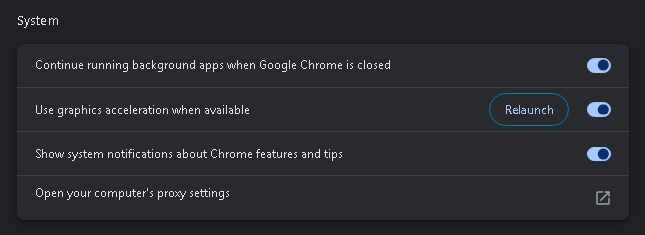
Turn on Use graphics acceleration when available.
Click the Relaunch button that appears next to it. The setting only takes effect after the browser restarts; your tabs come back afterwards.
Before: graphics acceleration is off.After turning it on: click Relaunch.
Firefox
Open Settings and scroll to Performance on the General page.
Untick Use recommended performance settings, then tick Use hardware acceleration when available.
Restart Firefox.
Check Again
Open chrome://gpu (or about:support) once more. WebGL should now say Hardware accelerated, and the graphics device listed should be your real graphics card (NVIDIA, AMD or Intel), not “Microsoft Basic Render Driver” or “SwiftShader”.
Fixed: WebGL is hardware accelerated.
Still Software Only?
Update your graphics driver from NVIDIA, AMD or Intel's website, then restart the computer. Browsers turn the graphics card off by themselves when a driver is too old or keeps crashing.
On chrome://gpu, the Problems Detected section explains why the browser is not using the graphics card.
Laptops with two graphics chips: in Windows Settings → System → Display → Graphics, set your browser to High performance.
Laptops on battery: turn off the browser's Energy Saver (Settings → Performance); it can cap the frame rate to save power.
Try a private / incognito window: if TestPlatform5 is smooth there, one of your browser extensions is slowing pages down.
Other Ways To Gain Speed
Close other heavy tabs and applications, lower the graphics quality in Settings, and try a smaller world to compare. If a world is slow for everyone, the world itself may be very detailed.